> ## Documentation Index
> Fetch the complete documentation index at: https://cortex-foundation-add13747-droid-2a5c5e50-docs-ferndesk-pro.mintlify.site/llms.txt
> Use this file to discover all available pages before exploring further.
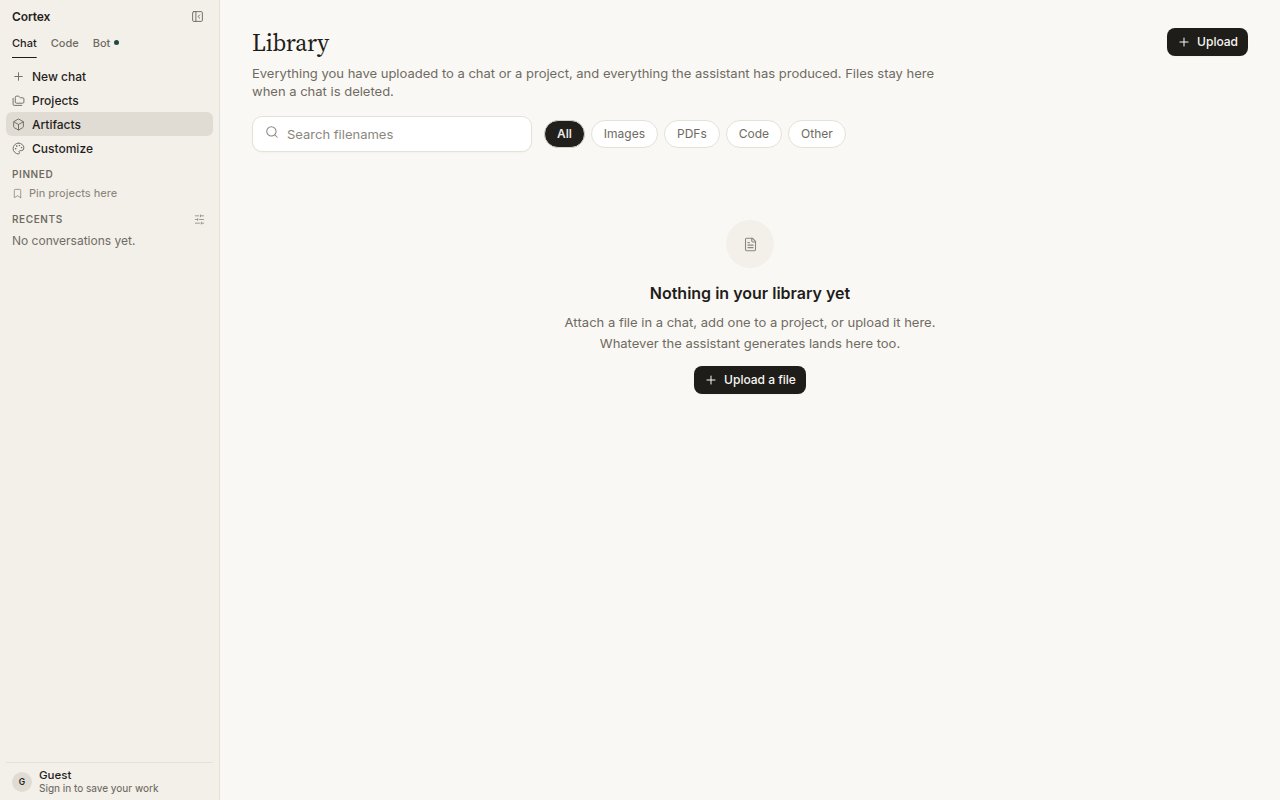
# Library
> Everything you uploaded to a chat or a project, and everything the assistant produced. Files stay in Library when a chat is deleted.
Library is the file store on your account. Anything you attach in a chat, add to a project, or upload directly lands here, and so does everything the assistant generates — pictures from Cortex-Image-1 included. Open it from **Artifacts** in the sidebar.
 ## How files get in
| Route | What happens |
| --------------------------------------------------------- | ------------------------------------------------------------------- |
| **+ → Attach file** in the composer, or drop a file on it | The file is checked, stored in Library, and attached to the turn |
| Add a file to a project | The file is stored in Library and available to that project's chats |
| **Upload** in Library | The file is stored for later use |
| The assistant generates something | Generated files — images, documents — are saved here |
Type and size checks run at upload. A rejected file is not attached and does not appear in Library.
## Use a file in Chat
Pick from Library when you start a turn, or attach a fresh file. The conversation receives the file as an attachment. Cortex does not fetch a URL you paste as if it were an attachment — paste a link and Chat will read it as text, or use web tools to fetch the page.
Deleting a chat does not delete its files; they stay in Library until you remove them there.
## Filters
**All**, **Images**, **PDFs**, **Code**, **Other**. Generated pictures show under Images.
## Failure states
A Library fetch that fails shows an **error square** in the thread — never a spinner that spins forever. Retry the turn; if the file is gone from Library, attach it again.
## Guests
Library needs a signed-in account. A guest can attach files to the current session; they are not kept once the session ends. See [Accounts](/getting-started/accounts).
## Library across the products
Chat's Library is the file store for your account, and it is a Chat surface — Code sessions work in their guest's filesystem, and a bot has its own computer. The one other thing called a library is the [Design library](/design/library): components, pages, and tokens for canvases, which lives in the Design desktop app and shares nothing with this one.
| Object | Product | What it holds |
| --------------------------------- | ------- | ---------------------------------------------------- |
| **Library** (this page) | Chat | Files you uploaded, and files the assistant produced |
| [Design library](/design/library) | Design | Components, pages, tokens |
| Code session files | Code | The repository checked out in that session's guest |
| Bot computer files | Bot | Files on that bot's own desktop |
## Related
* [Projects](/chat/projects) — pin files to a body of work.
* [Image generation](/chat/images) — generated pictures land here.
* [Origin check](/chat/origin-check) — check attached media.
* [Design library](/design/library) — a different object: components, pages, and tokens for canvases.
* [Settings → Data & privacy](/getting-started/settings) — export or delete everything.
## How files get in
| Route | What happens |
| --------------------------------------------------------- | ------------------------------------------------------------------- |
| **+ → Attach file** in the composer, or drop a file on it | The file is checked, stored in Library, and attached to the turn |
| Add a file to a project | The file is stored in Library and available to that project's chats |
| **Upload** in Library | The file is stored for later use |
| The assistant generates something | Generated files — images, documents — are saved here |
Type and size checks run at upload. A rejected file is not attached and does not appear in Library.
## Use a file in Chat
Pick from Library when you start a turn, or attach a fresh file. The conversation receives the file as an attachment. Cortex does not fetch a URL you paste as if it were an attachment — paste a link and Chat will read it as text, or use web tools to fetch the page.
Deleting a chat does not delete its files; they stay in Library until you remove them there.
## Filters
**All**, **Images**, **PDFs**, **Code**, **Other**. Generated pictures show under Images.
## Failure states
A Library fetch that fails shows an **error square** in the thread — never a spinner that spins forever. Retry the turn; if the file is gone from Library, attach it again.
## Guests
Library needs a signed-in account. A guest can attach files to the current session; they are not kept once the session ends. See [Accounts](/getting-started/accounts).
## Library across the products
Chat's Library is the file store for your account, and it is a Chat surface — Code sessions work in their guest's filesystem, and a bot has its own computer. The one other thing called a library is the [Design library](/design/library): components, pages, and tokens for canvases, which lives in the Design desktop app and shares nothing with this one.
| Object | Product | What it holds |
| --------------------------------- | ------- | ---------------------------------------------------- |
| **Library** (this page) | Chat | Files you uploaded, and files the assistant produced |
| [Design library](/design/library) | Design | Components, pages, tokens |
| Code session files | Code | The repository checked out in that session's guest |
| Bot computer files | Bot | Files on that bot's own desktop |
## Related
* [Projects](/chat/projects) — pin files to a body of work.
* [Image generation](/chat/images) — generated pictures land here.
* [Origin check](/chat/origin-check) — check attached media.
* [Design library](/design/library) — a different object: components, pages, and tokens for canvases.
* [Settings → Data & privacy](/getting-started/settings) — export or delete everything.